Showing posts with label Tablet. Show all posts

Friday, March 9, 2012

Windows 8 Consumer Preview

Microsoft announced on February 29th, 2012 that they have officially let the Windows 8 consumer preview loose on the world making it widely available for download. Seeing that news, I had about a 2 - 3 minute fight with myself as to why I should or shouldn't ruin my perfectly good Windows 7 installation before my curiosity won out and I went to the website and downloaded the web install (thinking it was just a download tool that would give me an ISO file to burn). So I would like to share with you my experience with installing the new OS (twice I might add), what I think of it and definitely all of the things that needs to be improved.

I thought it would be best if I broke this down into 4 sections:
  1. Web Installation
  2. Fresh Installation
  3. Brief overview
  4. What needs to be fixed
I won't get into any detail as to how you configure it or any of the nice new features as that would take quite a bit longer and I have to admit that I don't have it all figured out yet. I will however share something that helped me clean up some tiles and soothe some of the 'Start Menu Withdrawl' that all of us that aren't using it on a tablet will have.

Web Installation:

To be honest, I thought that the web installer was going to be one of those download tools that you HAVE to use to get the ISO down from wherever they wanted to hide it. I was quite surprised that it was actually the install tool an was going to upgrade my Windows 7 Professional installation to the new Windows 8 preview.

I am actually quite shocked at how well this worked, and if it wasn't for the fact I generally think it is not a good idea to upgrade from any previous OS (except Linux with keeping the /home partition) they did everything exactly right. You click on the installer, it downloads, installs and reboots and depending on your download speed, you are up and running with a new Windows 8 installation, as simple as installing any other program on the system.

The only caveat that you must know is that there is NO UNINSTALL. You can't simply try it out and uninstall it, it alters your system so much that this is not possible. So consider a virtual machine if you do not want to lose your existing Windows installation.

When I did try out the OS I did have a lot of left over garbage from my Windows 7 installation (namely the fact that I used a Mac theming program to make my system look like it was running OSX Lion). Some programs didn't work and there were a few other oddities, which is why I recommend that if you are going to try this, do a FRESH INSTALL. At least that way you know that everything is working as they had intended it to.

Fresh Install:

So with all the problems that I was having with the web install version of Windows 8, I wanted to start from scratch, so I went poking around for the Windows 8 ISO download. You can find it if you look, but I was maxing out at a 67KB/s download rate, which would have taken forever to get down to burn onto a disc.

Web Install Tip: If you have done the web install (which is super fast I might add), then you already have 2.8 GB sitting on your C: drive doing nothing. So rather than download the same thing twice, you can take what was placed on your hard drive for the web install and make that into a burnable ISO file to do your install. Here's how you do it (bear with me, this is from my memory as I finished the fresh install):
  • Locate C:\WindowsEDR (or something like that) to ensure that you have the necessary files. The directory should be around 2.8 GB in size.
  • Download this tool: http://www.sevenforums.com/attachments/installation-setup/72576d1273718566-boot-cd-dvd-bootisomakerv2.zip 
  • Unzip the tool and then run the batch file within it.
  • It will ask you for the boot.wim file, so go to C:\Windows EDR\Sources and select boot.wim.
  • Once you pick the file the program will begin to make the ISO file from the downloaded web installer files.
  • Once the ISO is created (it will be created in a 'VirtualStore', so you may have to search for it).
So using the above steps I took the windows install files that I already had, created an ISO and then burned that to disk, much better than the 13 hours I was looking at for the ISO download.

The install of Windows 8 is identical in almost every way to Window 7, so it shouldn't be to hard to figure things out. I wiped out my entire drive and let Windows 8 have it's way with the file system.

Once the install was done, the system booted up and I began once again to setup Windows 8 from scratch. I have to admit that it is much more fast than the upgraded Windows 7 version and also a lot of things that were previously causing me issues were now gone.

Brief Overview:

As a user of Windows since version 3.1, I have seen every evolution of the OS and the revolution that happened since they switched over to using Windows NT technology, vs. the older DOS/Windows combination I thought I would be able to figure Windows 8 out relatively quickly, but I was wrong. The changes that they have made to the OS up front are quite strange and anyone used to the traditional Windows "Desktop" metaphor will have some things to get used to.

Metro UI:

This is supposed to be the greatest advance in Windows since the switch to NT technology, but I think it falls quite short of a great advance. The first thing you will notice upon completing the various setup screens is that at the end of it all you will see this tile interface:


Metro UI

It will probably look a bit better than this given that I have changed a lot of it, but essentially you will be looking at this screen. Now before I go too much further, a colleague of mine at work looked at the UI today and said... "Hey, that looks like Lotus Notes!" I thought to myself... how does it look like Lotus Notes? Then it dawned on me... the little program squares do look JUST like Lotus Notes databases on the workspace:

Lotus Notes 6.5.1
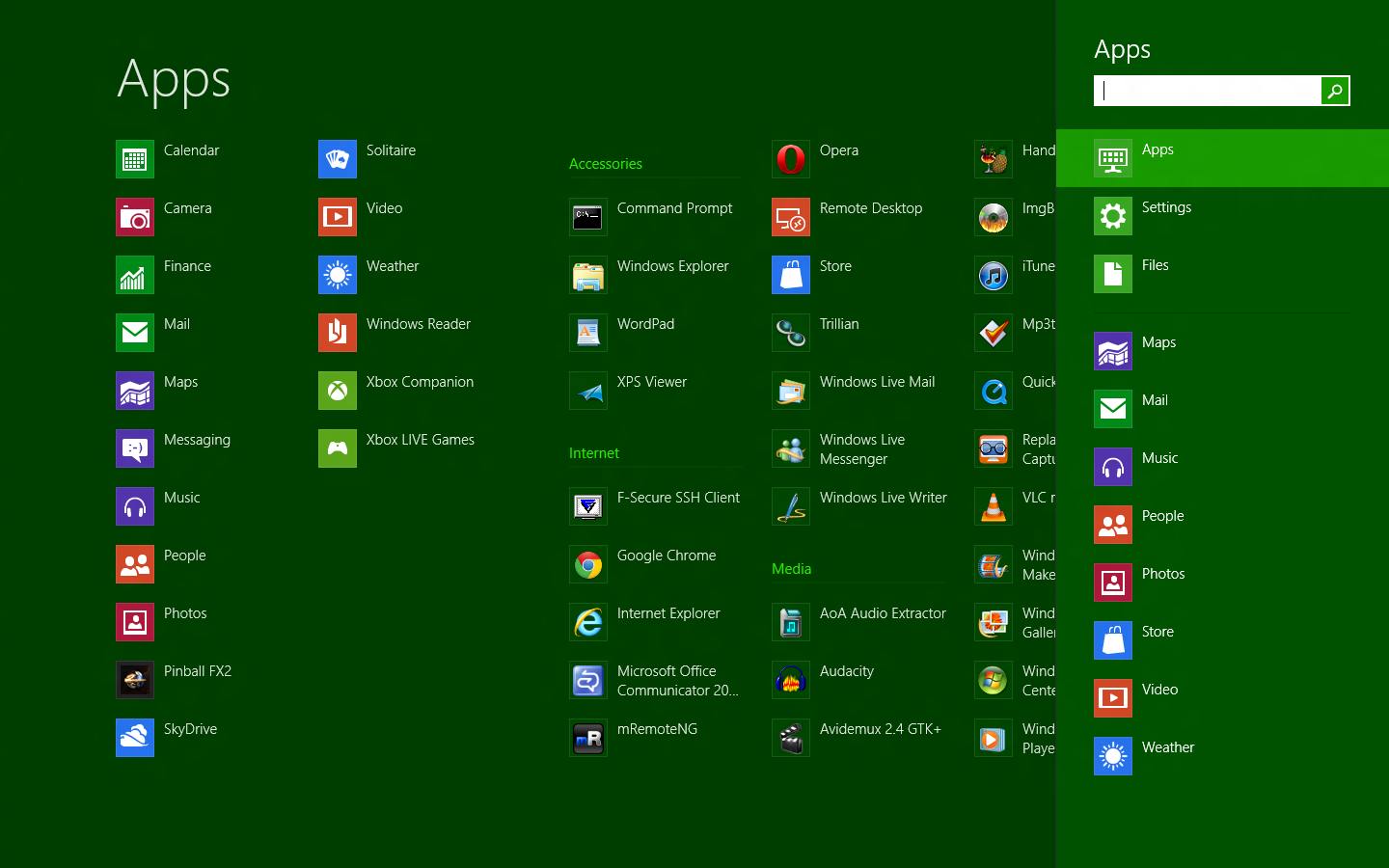
Metro UI Application List
I thought it was hilarious and also somewhat uncanny. 

Application Selection:

Metro reminds me somewhat of Gnome 3.0 in the sense that you have a screen that you use to type a search term for the application you want, or you just click it from the screen right in front of you. Non-touch screen users of Windows 8 (myself included) have no reason at all to stay in the Metro UI as it doesn't really serve any purpose for people using keyboards and mice, it actually makes Windows look a little unkempt. 

Gnome 3 Application switcher/search
Metro Application search
Metro App Switcher:

When in Metro or Deskop, when you move your mouse up to the top left corner of the screen you get presented with an application switcher. Before you get too excited, it is not at all like the way the workspaces work in Gnome 3 nor is it a fancy new way of switching between applications in Windows 8, it's sole purpose is to help you switch between Metro apps.

The switcher works almost exactly like the Android recent applications function works, and it should because it is pretty much identical, just useless for Desktop users.


Charms:

Not sure why they call them charms, but when you move your mouse pointer to the top or bottom right hand corner you get a bar that slides in. The bar itself is not customizable and only has 5 items on it: 
  • Search: Which takes you back to the application search window.
  • Share: Which doesn't seem to be what you would expect for something that says 'Share'. It seems to share specific things and doesn't work the way sharing a folder might work. Try as I might it wouldn't let me share anything at all.
  • Start: Brings you back to Metro
  • Devices: Is again another example of not getting something you would expect such as all  the devices that are removable. I only ever get shown 'Second Screen' when I click it.
  • Settings: This is about the only useful button on the whole thing. From here you can go to the control panel, install themes, view computer information, alter your sound, brightness, networks and notifications as well as power down Windows (which is actually tricky since there is no start button).


Cloud Integration:

I haven't tried this out too much but the OS seems to tie in with SkyDrive as well as all the major social networks. I also didn't have to create a local ID as I am using my hotmail credentials to log into the machine (even when I am not network connected). If it does a better job of integrating with the cloud, I can see why the cloud is becoming an important part of an OS. If it is anything like what Google has done with Chrome, then (namely upon sign in all your apps, settings and bookmarks are restored) then this will be a great feature.

Skydrive is available (so far as I can tell) only via the Metro start screen. When you click on it, it basically brings up more squares showing some pictures and some folders that you may have up in the cloud:

Skydrive Layout
While you can go through items in your Skydrive and save items locally by right-clicking the item, there is no way that I could find to send a file up to Skydrive. 

Ribbon Everywhere:

Explorer Ribbon
For the desktop, the Office ribbon has made it's way to Windows explorer and most MS products now have the ribbon interface.

What needs to be fixed

It is very clear from this demo that they are pulling away from the traditional 'desktop' metaphor and moving into Apple's 'app' model, which makes sense especially with the focus being seen on tablets and mobile OSes. They are also attempting to unify the experience across phone, tablet and desktop (possibly Xbox??) to make it easier to develop for and also reduces the learning curve for each of the listed devices, which also makes sense.

The problem is that it appears for the moment that they are going to do this at the expense of their biggest user base, the 'Desktop' user. When installing the consumer preview on my own system, it did take some time to find out where things were and to get accustomed to certain things.  But one thing that I don't think that any Desktop user will get used to is the fact that the Desktop is now an app and that you will always have to look at that big blocky Metro UI if you want to launch a program. I imagine that the outrage over this  and the fact that this couldn't possibly work for a business user will inevitably lead to allowing the Metro UI to be disabled in favour of the start menu, but time will tell.

In the mean time, if you do 'sorta' want your start menu back just create some links to your user start menu and to the all user start menu so that when you open explorer, you can navigate to the programs you want or clean up the start menu junk as I like to do. You can find the directories here:

Your Start Menu:C:\Users\<yourusername>\AppData\Roaming\Microsoft\Windows\Start Menu\Programs
All Users Start Menu: C:\ProgramData\Microsoft\Windows\Start Menu

Here are the things that I think they should fix:

MetroUI as an option: 


As I said earlier, they are going to be alienating all of their Desktop user base with this release and possibly working on the next Vista debacle unless they make this optional. Even if they want to 'force' people to adjust to the new reality of friendly touch interfaces and OSes, there is no way they can make this big of a jump so quickly. I am technical and have no problems using Windows, but even I had problems getting used to this OS and finding anything in it, I shudder to think of what might happen to people like my parents if they happen to buy that next computer with Windows 8 running on it.

There is also the fact that the enterprise will never buy into this. Unless there is another SKU for Windows in the enterprise you can expect the vast majority of companies to stick with Windows 7 about as long as they had stuck with Windows XP. And if there does happen to be a SKU, I wouldn't think it is hard to imagine desktop users flocking to buy it vs. the consumer release of Windows 8.

Make it an option and save yourself and everyone else a headache, the UI doesn't make sense on a non-touch PC.

Shutting down the PC:


Believe it or not it is hard to figure out how to shut down your PC. I couldn't find it initially, so to shut my system down I resorted to running 'shutdown /i' so that a window would pop up to allow me to shut the system down. To my surprise, despite my explicitly asking the system to shut down it only hibernated (albeit quickly) and when I started the system up from what I thought was a cold boot I was surprised to find some programs I had previously opened reloaded.

This appears to be another Microsoft attempt at pushing us towards purchasing that Windows 8 tablet because this hibernate/suspend behaviour would only be good for a tablet device. In my case, and what I will mention next, I was having an issue with my wireless card connecting to anything. The first thing that anyone typically does is restart the computer to start fresh and eliminate any possible issues that might have caused the problem.

Full Screen Apps:


I have tried some of the apps that they include in the beta, and while they are nice and clean, they lack the functionality you would expect on a regular Windows program. Essentially, the apps themselves are tablet oriented (of course) but since I am using the app on a laptop computer I would expect to get a little more functionality. Granted, this is a beta, so I can't have too many expectations and can only base my opinion on what I am playing with, but I really think that they need to ensure that there are sufficient options for Desktop users. The reason that I bring this up is that I have heard that the 'Windows Live Essentials' package, which in my opinion is essential is going to become a series of apps rather than a series of desktop applications. They did wonders with Windows Live mail, MSN messenger and the Movie Maker/Photo gallery applications, it would be a shame to see these applications go from being feature rich to barebone and tablet optimized. I don't think it is possible in every case to have a one size fits all approach to applications since Windows didn't start that way. They can certainly share apps, but going from feature rich applications to tablet apps on a desktop is not ideal. Hopefully this does not become forced, or even gently nudged given that many developers will want to get onto Windows On Arm for the tablets.

Settings


No doubt this is most likey a result of it being a beta, but I have to say that the charms and devices listed in the Metro UI version of settings is not cutting it. When I have my laptop docked at work and some USB devices plugged in I only ever see something about configuring a second screen. Perhaps it is a problem with my system, but it is also very confusing to try and configure a laptop when there are very limited options from Metro.... I think I would scream if I didn't know how to bring up the control panel or any other application that I was used to previously. And if they strip the old settings out completely, that will be 'interesting' to say the least.

Enterprise Applications


They should include an older version of IE or some sort of compatibility mode for existing applications with it. It is fairly early to say, of course, but one of the biggest problems I had is that virtually no web application would work with IE10. I had to try and make due with Firefox... and that was difficult. Definitely will need this compatibility (and it will most likely be there when then deploy) for the enterprise.

Sliding up to login


I would have thought that the OS would know that I am not on a tablet, because it doesn't make sense to me as a laptop user to have to use my mouse to swipe up, and in effect simulate a tablet touch to get to the login prompt.

Summary:


I think Windows 8 is worth a try, but it is very difficult to live with as a beta, which is what lead me to remove it and install Windows XP/Ubuntu 12.04. What the deal breaker for me was that enterprise applications would not work, my system would never actually shut down and everytime I did start it, it would have networking issues that were only solvable by running the troubleshooter.

From an upgrade perspective, I think it is asking too much though (at least for now). While I am fine with learning something new I know for a fact that it will perplex my parents and other non-tech literate people, since they are barely used to the current version of windows.

I can see this being a future play, something for a long way out as it is tablet centric. Sooner or we will not need that PC or laptop as we will be able to get all our work done on portable devices (phones & tablets) and even a laptop PC will be exactly what the laptop is currently to the desktop... a big heavy and cumbersome thing that is not convenient to bring with us or use. So in that respect Windows 8 makes perfect sense to me, I just don't think it is quite ready for general use. We also have to wait for a time when there are new devices that can accomodate all of the changes they have made in Windows8.

Update 05/05/2012: While playing with Windows 8 CP, I have been noticing that the computer never really shuts down, it either sleeps or hibernates. Ever single time it comes on the network card (both wireless and wired) do not work. I always have to troubleshoot them to get them back in working order. Not sure what that is about, but it is a pain. If we could just shut down our computers, that would be great too.

Wednesday, February 22, 2012

Abandoning the HSS-RIM


I was recently reading an article from the financial post that stated 12,635 US government employees next phone will be an iPhone rather than a Blackberry thanks to the General Services Administration which procures devices for the government. This comes right after Halliburton announced that 4,500 of its employees would be switching as well.

This is not entirely unexpected after the years of missteps by RIM, it is becoming a lot harder to have faith that they are ever going to do anything about it. Couple this with the 'consumerization of IT', where most people and some companies are willing to forgo a stable and secure e-mail system for one that has new slick hardware and a big repository of apps to select from. I actually think that this is just the tip of the iceburg when it comes to people moving off of RIM to other devices, and here why:


People will bypass enterprise security for features:

Most enterprises around the world have the blackberry for 2 reasons, security and reliability. This more or less means that if you are an enterprise employee in 2012 or before, you are for the most part going to have a blackberry to receive your corporate mail and calendar. That blackberry is most likely not going  to have access to anything useful and will drive those who want access to social networks or apps circumvent corporate security to get the features and applications they want on a phone. Corporate executives are typically the worst offenders for this by either being 'exempt from policy' or using another device that they like rather than the Blackberry.

People want to be social:

Everyone wants to be social, it's almost like now a days there is no choice... you simply have to be on Facebook, Twitter, Google+ and other social networks to find interesting information and connect with friends and family. Especially in the age of Twitter when you can post about everything that happens on your way through life, you want to be able to keep up with people and say what you want. Of course this could be a liability to the corporation especially if someone thinks you are saying something on their behalf, so you will find most devices have Facebook & Twitter locked down and or blocked on the network. This is changing slowly, but for the time being it is restricted for most and makes people do other things again... to get around the problem.

People want to use apps that will enhance their ability to work:

In the beginning there were really no applications that were compelling enough to actually want to put them on your iPhone. But nowadays, the 'app' is not only another way of interacting with customers, but can also be something that is used to enhance the employee experience. Even if there isn't a 'work centric' application for the iPhone, there are plenty of other applications on the phone that can enhance personal productivity. This is one of RIM's biggest weaknesses, as they are in mid-transition to a newer operating system, so their platform is technically in limbo. Would developers know what to develop for? OS7? OS10? HTML5? Are the tools even sufficient? Even if they are or eventually will be, are there enough Blackberry users left for them to make money? Bottom line, there is no comparison for application diversity.

People DO NOT want to carry 2 phones: 

This is an age old problem that started with pagers before the blackberry phased them out. But now that we have iPhones and all our media purchases locked into the Apple ecosystem and most of us don't really feel like using our Blackberries for music or anything else besides mail. So most of us carry the iPhone or Android phone to work for apps and music and the Blackberry only for enterprise email. No one wants to do this anymore, we all want the simplicity of having everything all in one device with some sort of magic protected area for sensitive corporate data.

Summary:

So even though the US government and Halliburton are switching from Blackberry to iOS is a drop in RIMs enterprise bucket, I believe that it is the beginning of a trend. With tablets becoming more commonplace, new apps coming out all the time and the amazing new phone hardware coming out constantly, whatever RIM is doing now is most likely too little too late.

If they are just releasing an update to the Playbook that 'should' have been Playbook 1.0 with no features other than what it should have shipped with initially, it doesn't spark too much confidence in what they will release as Phone OS v1.0. And even though the 'next gen' devices do look amazing from a hardware perspective, my guess is that is all it will be, hardware. RIM is great at hardware but it is the software that is going to make or break the phone and if the software ends up being remotely close to OS7, or its release is much like the original Playbook release, then I am afraid that their boat will be sunk.

I really hope they knock our socks off with that first new device, but we can't get our hopes up given their past promises. But you will definitely see what will become of RIM only a few short weeks after the initial release of the new phone. If it doesn't live up to the hype, they will be severely punished by the markets and will have lost the tiny bit of faith we are all holding onto for them.

Friday, November 25, 2011

ASUS Eee Pad Transformer TF-101


Alright, the post isn't actually about transformers (which I have been a huge fan of since I was a kid), it is about my TF-101 Asus Eee Pad transformer, which I have been enjoying immensly since I bought it this month.

As I mentioned previously in my about post, I am an avid listener of podcasts and spend a lot of time hearing about the 'next big thing' and the various reviews of them. I am also a regular passenger on the GO transit train system here in Toronto (to commute to work) and in addition to listening to what new tech toys are out there, I get to see them first hand on my way in. So let me tell you first how I got this cool little device, before I get to my thoughts on it and using a tablet in general.

The story behind my eee pad:

For the vast majority of my life being a parent, many things have come in the way of me getting some of these new toys... most parents are familiar with the house bills, kids and other things that generally divert funds away from where I would ideally place them... so needless to say I have been in a constant state of tech envy for years.

About 9 months ago, I started to hear reviews about the Macbook Air and how thin/light it was and everyone seemed to be raving about it, so I thought to myself, that's the computer for me! So I started to run the idea through the budget committee (wife) to see when we could fit this purchase in. To my surprise, it happened not even 2 months later while we were in Best Buy, I was literally minutes from purchasing it, but for some reason decided to hold off on it. After that my approval was revoked for a bit and became busy, so I didn't really think too much on it.

So about 3 months ago I shifted my position on the GO train, which occassionally people do (but not often, you can seriously see the same people everyday in the same spot... almost as if you work with them). Before the move I was used to seeing people and their iPad 1 ; 2's, it was no sweat for me... didn't really have an interest in one. In my new spot I am sitting near an older woman, must be in her 60's and she ALWAYS has her iPad out. This started to bug me. It's not that I don't think that older people shouldn't embrace tech, or even that I really care that she even has an iPad... it was the thought of me, self-proclaimed technofile sitting on a train with an iPhone 3G trying to make the most out of the slow device and there is an older woman, who most likely does not have an interest at all in tech, sitting across from me with newer tech. How is it possible that I am so late to the game that an older woman has newer tech than I do?

After about 2 weeks of watching how wonderfully she played her word games on her iPad I had had enough, I needed to correct this imbalance. So I got thinking on the Macbook Air again, but also on how nice it would be to have some sort of a touch screen. Also being a huge Linux fan, thought that maybe I should get out of the walled garden that is Apple to the more open pastures of Android. Then an ad that I had been seeing a lot recently at Walmart popped into my mind... a tablet with a keyboard! Eureka! That's it, that's what I want! I wanted to try out Android anyway. So I checked it out at Walmart and looked up reviews. Long story short, have an eee Pad transformer that I am now blogging from.

Thoughts on Android:

After nearly 3 weeks or more (not really keeping track) I am really impressed with Android 3.2, can't actually wait to see what 4.0 is going to bring. Before this device all I had was an iPod2G and an iPhone 3G, so I only knew Windows, Linux and iOS. I was pleasantly surprised as to how easy it was to catch on and how many things I preferred on Android vs. iOS. So first, based on my information from my fellow technologists, here are a few things I thought would be a problem with Android:
  • Inconsistency/instability in the platform.
  • Android Market would be the 'wild west' and it would be difficult to find software.
  • Worries about updates to the platform.

To my surprise, when starting to use my TF-101 about the only thing that I couldn't wrap my mind around initially was how the home screens were setup, and how to add/remove items from it. The platform was rock solid, I didn't have any hangs that required rebooting the device and when there was a pesky program that seemed to soak up the CPU, Android told me about it and asked me nicely if I would like to terminate it or wait. 

The Android Marketplace was another surprise (and even more so with the recent changes), I had NO IDEA what I should be putting on this device, but when going to the Marketplace it was a nice surprise to find that most good programs that are in the Apple Appstore are also in the Android Marketplace... or at least the ones that I cared about. This was a no-pain transition, which totally surprised me, but the fact that I am a technical person probably helps that a lot. 

Something that I have heard about in the tech world regarding Android devices are that updates are few and far between. Because of this I thought that perhaps I will get one more major update to the platform for this device before the OS remains static. While that remains to be seen, ASUS has promised ICS for this device so at least I am guaranteed at least 1 upgrade. If you do a little research out on the net, you can quickly quash most worries as there is always Cyanogen mod and if all else fails you can even put Linux on it (which i will likely do when there are no further updates).

Another couple of things that I like about Android specifically is the multi-tasking and the settings. I have been so accustomed to my jailbroken iPhone 3G multitasking (if you can call it that) that I thought it would be the same on Android, but it isn't. Things multitask quite well on the OS and my standard for testing this was the Citrix connection into work with my iPhone vs. my TF-101. With iPhone it 'pauses' the app, so you either end up re-loading the app from the beginning or it will just continue from its paused state, which doesn't work too well for Citrix given that it depends on a network connection. So on the iPhone, if I ever move away from the app, it results in me having to log in which is a complete pain. On the TF-101 I can jump to many different applications and when I move back to Citrix, there it is, waiting for me network connection and all. Closer to true multitasking if you ask me, I would say full, but I have found from time to time apps are paused or unloaded and I have no idea what the process is for that or why it happens.

The settings are also great as there are a lot of things that you can access and change, the specific things that got me were to be able to 1) See what applications are running and kill them. 2) See what applications or things that are killing your battery. Those 2 things are enough to make me think highly of the settings along with the presentation of the settings, but I am sure there are many more things that make it interesting.


Thoughts on the TF-101:

After having this device for a while I think it is one of the best devices out there, and I think it is a ground breaking genre... just not revolutionary, because the concept is nothing new. I like to think of it as the blackberry torch of the tablet world, only in the sense that it is the best of both worlds... you have your touch screen and also a keyboard, the choice is totally up to you. I don't know about you, but I find typing on a tablet a miserable experience no matter what trick you try and believe me I have tried. One I often try is to hoverer my hands just above the keyboard to try and avoid touching the screen. This does not work well, I am certainly not going to get 80 - 100 words per minute this way, and this is what makes me so glad that I have the option of a keyboard.

I know that there are some purists out there that believe that if you are going to have a tablet, it should be just that, a tablet. But I find that to be an extreme point of view because there is no reason why you cannot have both if you want to, and the TF-101 makes that very enticing in a lot of ways. I don't believe the argument should be netbook vs. tablet, it should be about what works.

So here is my list of things that I think are brilliant about the TF-101, we will call it the 'pros' list:

Battery life:

According to specifications, it is supposed to be usable for 16 hours because it actually has 2 batteries, one in the tablet and one in the keyboard dock. I have been using the device an entire day (watching movies (sometimes flash), playing games, typing documents and surfing the web - my typical use case) and I have never gotten the battery down to less than 50%. I can't tell you how great it is to use something and not even give a passing thought to the battery life. This so much better than the 3 hour laptop battery life I am used to, it is a complete breath of fresh air and one of the things that makes the TF-101 such a great device.

One thing you probably didn't know, or at least I didn't see it anywhere is how the 2 individual batteries work together. Not that I know what ASUS had in mind when they developed this, but all indications are that they anticipated that you would use the TF-101 as a tablet before you would use it as a netbook. So, when you undock screen and use it as a tablet you start drawing from the tablet specific battery. But rather than just have the keyboard battery as just an additional battery (which in the event that your tablet battery was near death you would be forced to use the keyboard), they have instead configured the keyboard battery to charge the tablet battery. So you may have to use your keyboard for just a little while, but while you use it you will be charging the tablet for use.

I think this is a terrific idea and one of the things that makes this tablet/keyboard combination work so well.

Storage Capacity:

So by now, living in a world of iOS devices we are used to buying a device with a predetermined amount of space. But with Android that sort of decision is left with the manufacturer and ASUS (and probably most other manufacturers) think that you should have some input on that. So another one of the key things that I love about this device is the options for storage.

Starting with the flash storage, the TF-101 that I bought has a total of 16GB on board, which would set you back $499 on an iPad2, but what it has that the iPad does not is expandable flash storage. On the side of the tablet there is a MicroSD slot that can take flash memory up to 64GB (haven't found a max yet, presumably if it wasn't 64 it would be 32). And as if that is not enough there is an additional SD card to the side of the keyboard dock for a maximum of (160GB of storage, or in my case with the 16GB version, 144GB ==&gt; Onboard Memory + MicroSD + SD). This does not also include the fact that you could plug in an external disk to the device if you had a reason to (which I have not tested yet).

So, if you have a ton of media that you want to carry with you, this is the device for you.

Keyboard:

As I mentioned previously, I can type, so I lose productivity when I can't get text on the screen as fast as I am used to. So it is an added bonus to be able to choose whether or not you can use a keyboard and not having to lug a bluetooth keyboard around with you if you needed one with other tablets. Another side bonus to the keyboard is that it acts as a protective covering for the display, eliminating the need to by a tablet case.

Regarding the keyboard, overall, it is not too bad to type on. Having been using a Thinkpad keyboard for years I find that there is a lot more resistance to this keyboard, which seems to tire my fingers out a bit, but it is livable because in no way is it cramped. The keyboard does have a bunch of nice shortcut keys though that make it quick to do a few things on Android.

The Screen:

There are a couple of key things that are great about the screen, the first is of course the resolution. The screen has a resolution of 1280x800 which is a step up from the iPad2's 1024x768 and makes it feel almost on par with a laptop screen which generally have the same resolution. The resolution is fairly crisp, my wife is always asking my why the same photo looks so good on my tablet than it does on her laptop. The other great features of the display are the viewing angle and the scratch resistant screen, which are nice, but I am not particularly interested in testing.

The Cool Factor:

This won't count for much and it won't last long, but if you want to get those looks of wonder as onlookers see what they thought is your netbook suddenly become a tablet, then the TF-101 does the job. I have received so many looks and questions on how it works and how cool it is... I kind of like it. Reminds me of that feeling you get when you buy the first generation of a car and the looks you get as you drive around in it.

Software:

Though this is not a PC, it does come with many programs that make the TF-101 useful right out of the box, there is:
  • Polaris Office: A tablet office suit.
  • Music (don't think it has a program name): Is a half decent music player
  • Gallery: A photo viewing and categorization app that will also import photos automatically if you happen to plug in a camera or iPhone.
  • File Manager: Which I suspect is standard with Android devices
  • MyNet: Which allows your device to find DNLA devices and play content from them, or use your TF-101 as a DLNA server.
  • MyCloud: Which I most likely will not use (comes with unlimited storage for a year, after you have to pay).

There are a few more that I haven't mentioned as well as the widgets and wallpapers available.

Here are all of the things that I think could use some improvement with the TF-101:

Camera:

Though I don't currently have a decent cell phone camera, the camera on the TF-101 doesn't seem to be that great, particularily the front lower resolution camera. The software is easy enough to use, I just find that it is hard to get a really good picture, especially in low light conditions since there is no flash at the back of the device.
It does take adequate pictures, even better in daylight, but it doesn't seem to look quite as good as the pictures taken from an iPhone4, which has the same resolution.

Keyboard/Tablet Connectivity:

I have been finding with use, especially after the device goes into power saving, that the keyboard sometimes seems to disconnect when you come out of power saving. This has happened on a few occassions where I didn't see the keyboard indicator (that was there before power saving), which forced me to disconnect and reconnect the tablet to the keyboard to get access to it.

Touchpad Sensitivity:

This is a problem that occurs with almost every computer with a touch pad, it just seems that on the TF-101 you have to be extra concious of where your fingers are as at almost every turn I find my cursor moving elsewhere on the screen and often end up typing in the wrong location. Granted, there is a button to turn the track pad on and off quickly I think there should be some additional software that will prevent track pad movements when the keyboard is in use (you see this in Linux often).

Missing keys:

I like the keyboard and do think it was well done, but there are a couple of functions I thought would be nice to have on the keyboard:
  • A delete key: There only seems to be a backspace key.
  • A change apps key: All the other buttons that appear on the screen also appear on the keyboard with the exeption of the switch apps button. Not that it is a terrible problem to actually touch the screen, but it would be better if there was a key you could press to bring up the list of running applications.

Can't connect to ad-hoc wireless networks:

This isn't a TF-101 problem in particular, as I have read all over the net, this is more of an Android problem. Since there is no built in 3G connection, you would need to connect to some sort of mobile network. I have tried with Windows 7 on my laptop and Connectify.me and both have ended up with the TF-101 hanging on obtaining an IP address. I do have a program on my iPhone that turns it into a wifi hotspot and that seems to work just fine, but I just can't seem to share my connection at work.

Summary:

The TF-101 is a great tablet with a lot of fuctionality. Since buying it I have hardly touched my main laptop and am instead using the tablet most of the time. It has been super convenient to have a small, light, long-lasting device that is instant-on when I need to use it. If you are thinking of buying one, don't hesitate, it is an amazing device.